What is Avie?
 |
Interacting with the Avie Icon triggers either an input request or direct task execution, depending on the context. |
Avie is an integrated AI assistant designed to help you work faster and smarter. Depending on where you are in the system, Avie can assist with drafting emails, analyzing documents, or answering general queries.
Note: While Avie is a powerful tool for assistance and automation, it is not a substitute for human customer support. For system-critical inquiries or technical faults, please contact our team directly via the Support button.
The Diary Page: General Assistance
On the Diary Page, Avie acts as a general-purpose AI. You can ask it questions, request summaries, or generate content.
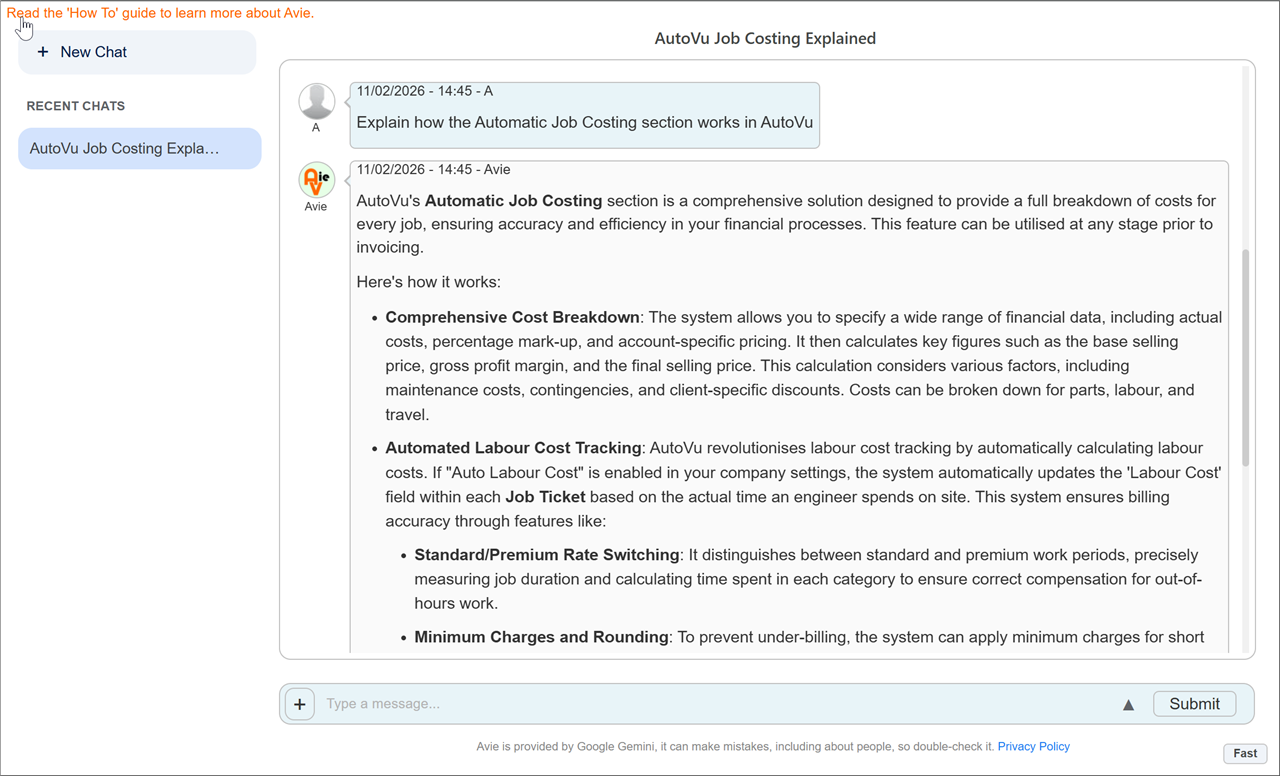
Getting Help with AutoVu Avie has access to our help documentation. To get the best results when asking about the system, include the keyword "AutoVu" in your prompt.
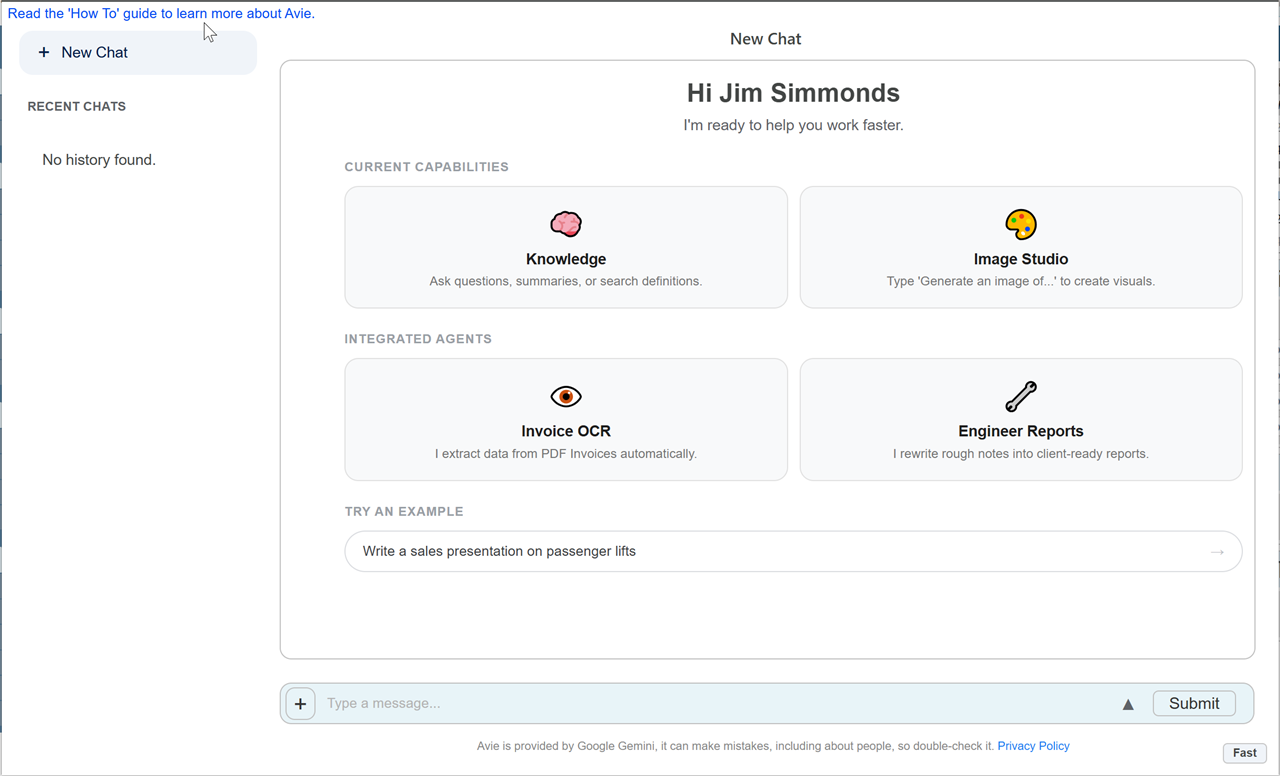
Avie will search the relevant guides and provide a specific answer based on our documentation.
Chat Management
Avie saves your conversations so you can refer back to them later. You can manage these chats using the controls in the side panel.
Starting a New Chat
Click the + New Chat button to start a fresh conversation. This clears the current context and creates a new entry in your history list.
Chat Options
Hover over any chat title in the history list to reveal the Options Menu (displayed as three dots ... or an icon).

-
Pin: Pinning a chat keeps it at the top of your list permanently.
-
Rename: Avie automatically assigns a short title to new chats based on the topic. Select Rename to customize this title.
-
Delete: Permanently removes the chat history.
The Input Interface
Attachments
Click the + button next to the input box to upload an image. Avie can analyze images or use them as context for your questions.
Expanded Input Mode
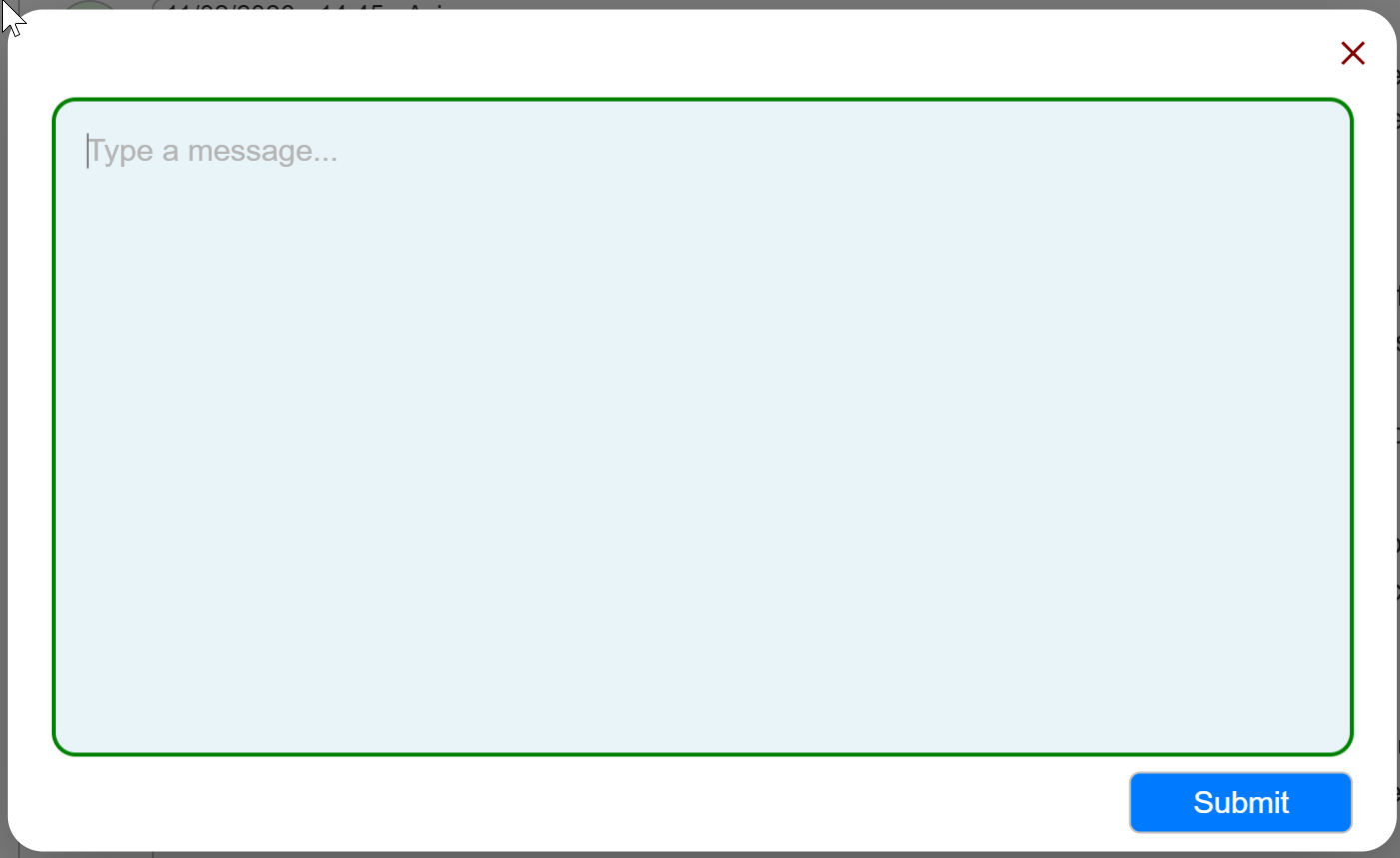
For longer or more complex queries, click the Up Arrow to open the Expanded Input Dialogue.
-
Standard View: Pressing Enter submits your message immediately.
-
Expanded View: Pressing Enter creates a new line (carriage return), allowing you to structure multiple paragraphs. To submit in this mode, either click Submit or press Ctrl + Enter.
AI Modes
You can toggle between two processing modes depending on your needs:
-
Fast Mode (Default): Best for general questions, drafting text, and quick interactions. It provides the quickest response time.
-
Thinking Mode: A more advanced setting where the AI "thinks" through complex problems before responding. Use this for logic puzzles, detailed calculations, or when Fast Mode isn't providing enough depth.
Engineer Reporting Assistant
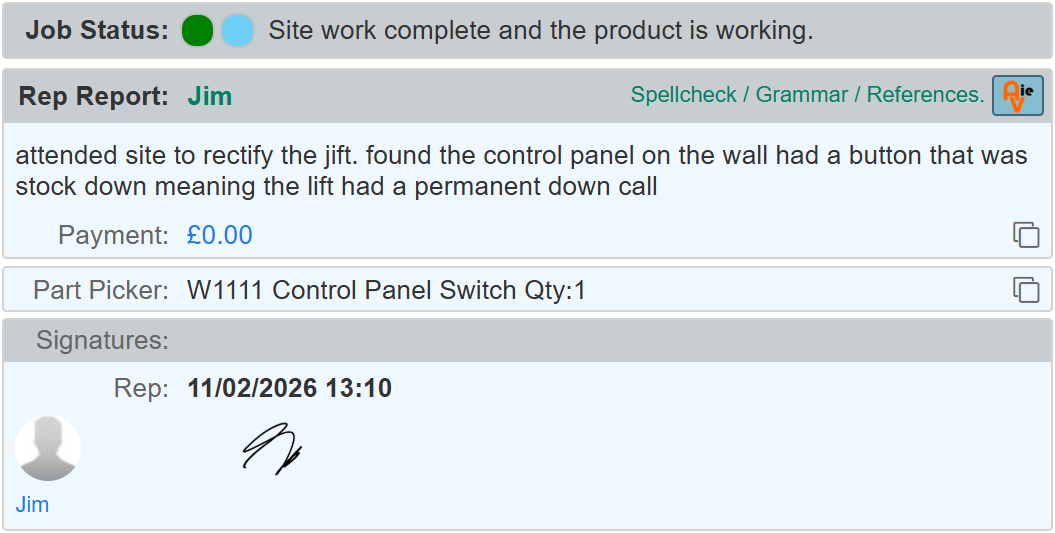
Context Job completion reports generated by engineers in the field can vary significantly in style, grammar, and clarity. This often creates interpretation challenges for office staff when processing invoices or updates.
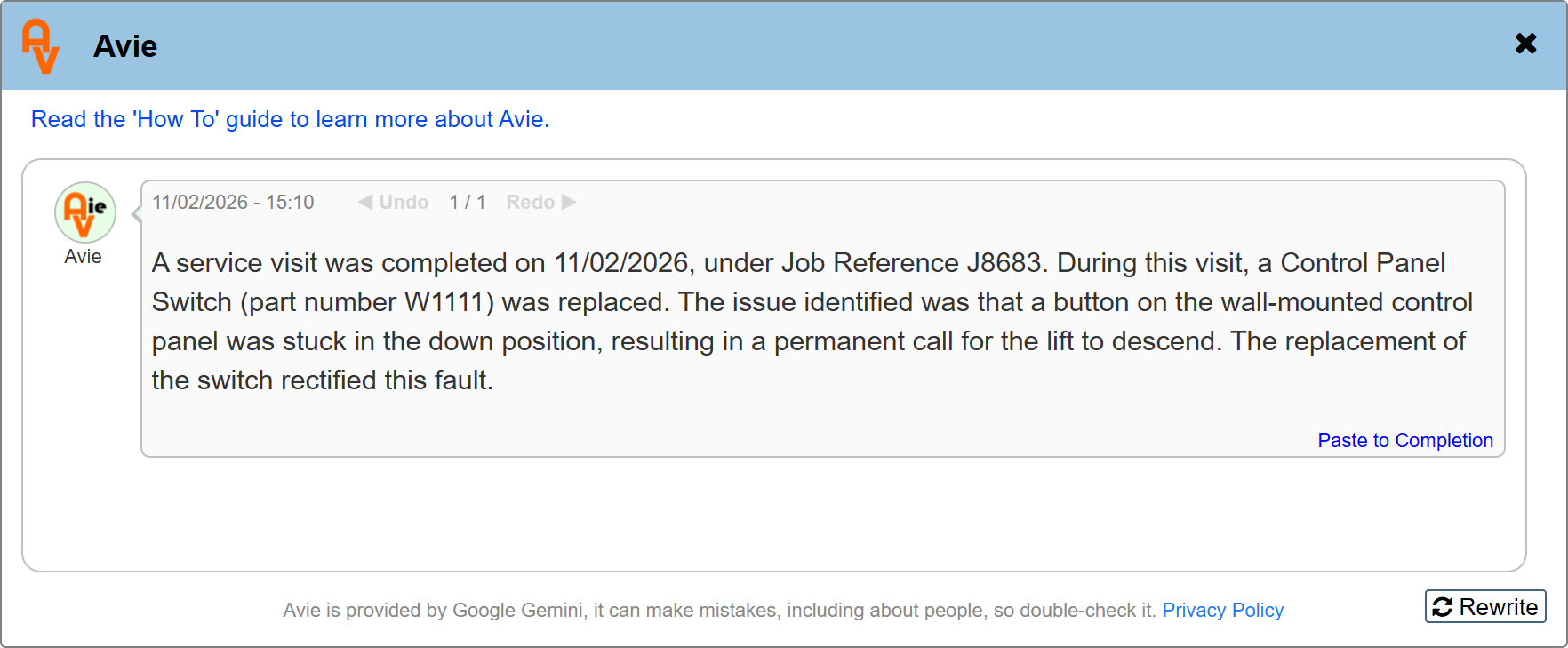
The Solution The Avie module on the Job Ticket page standardises these inputs. It automatically corrects spelling and grammar while formally structuring the text. Additionally, Avie appends critical metadata to the report, including the Job Type, Completion Date, and Job Number, ensuring a complete audit trail.
Example:
Original rep detail:
Usage Instructions
-
Initiate: Click the Avie icon next to the engineer's raw notes. Avie will process the text, fixing errors and improving readability.
-
Review & Commit: Once the polished report is generated, click Paste to Completion. This transfers the refined text directly into the Job Ticket’s official completion report section.
-
Update: If the original engineer notes are edited or added to, click the Rewrite button to refresh the Avie summary based on the new data.
Important Note: Avie is a text enhancement tool, not a fact generator. It can clarify poor grammar, but it cannot interpret or expand upon fundamentally ambiguous or missing information.
Smart Email Composition
Context Communicating technical job details to customers often requires manually summarizing engineer notes and listing parts used. This process is time-consuming and prone to inconsistency.
The Solution The Avie Email Assistant on the Job Ticket page automates customer correspondence. It acts as an intelligent synthesizer, pulling data from the Engineer's Report and the Parts/Materials List to construct a professional, customer-facing email.
How It Works Avie does not simply generate generic text; it contextualises the specific data available on the ticket:
-
Intelligent Merging: Avie analyzes three distinct data sources simultaneously:
-
The Completion Report: The technical details of the work carried out.
-
Parts Used: The specific materials or stock items booked to the job.
-
Your Draft: Any existing text you have already typed into the email body.
-
"Always Ready" Context: You never need to start from a blank page. Because Avie always has access to the underlying Job Ticket data (reports and parts), it can generate a comprehensive email update even if the current email body is completely empty.
-
Seamless Integration: If you have already written a partial message, Avie will respect your tone and simply enhance the content with the missing technical details, rather than overwriting your work.
Usage Instructions
-
Open the Email Editor on a Job Ticket.
-
(Optional) Type any specific notes you wish to include (e.g., "Apologise for the delay").
-
Click the Avie Icon.
-
Avie will generate a draft that naturally incorporates the engineer's findings and the parts used into a cohesive message.
-
Review the draft and send.
Intelligent Invoice Processing & PO Creation
Context Manually entering Purchase Orders from supplier invoices is a high-friction task. It involves repetitive data entry, looking up nominal codes, calculating complex tax rules (such as Reverse Charge VAT), and ensuring supplier details remain current.
The Solution Avie revolutionises this workflow by transforming static documents into live financial data. By uploading an image or PDF of a supplier invoice, Avie reads, understands, and processes the document to generate a fully coded Purchase Order draft.
Key Capabilities
1. Visual Recognition (OCR)
Avie accepts PDFs and Images (JPG/PNG). It scans the document to extract critical headers—Invoice Number, Date, Supplier Name—and every single line item description and cost.
2. Intelligent Nominal Code Selection
Unlike standard OCR tools that just copy text, Avie understands context. It analyses the description of each line item and automatically assigns the correct Nominal Code (e.g., assigning a drill bit to Tools or fuel to Vehicle Expenses) based on your system's history.
3. Advanced Tax Compliance (Reverse Charge)
Avie is programmed to recognise construction industry tax nuances. It detects if Domestic Reverse Charge (DRC) applies to specific items and automatically flags the tax rates accordingly, ensuring HMRC compliance without manual calculation.
4. Automated Vendor Management ("Self-Healing" Data)
Avie checks the extracted supplier details against your existing database. If the invoice contains new information—such as a changed address, new bank account details, or updated sort codes—Avie automatically updates the master Vendor Record during the process.
Usage Instructions
-
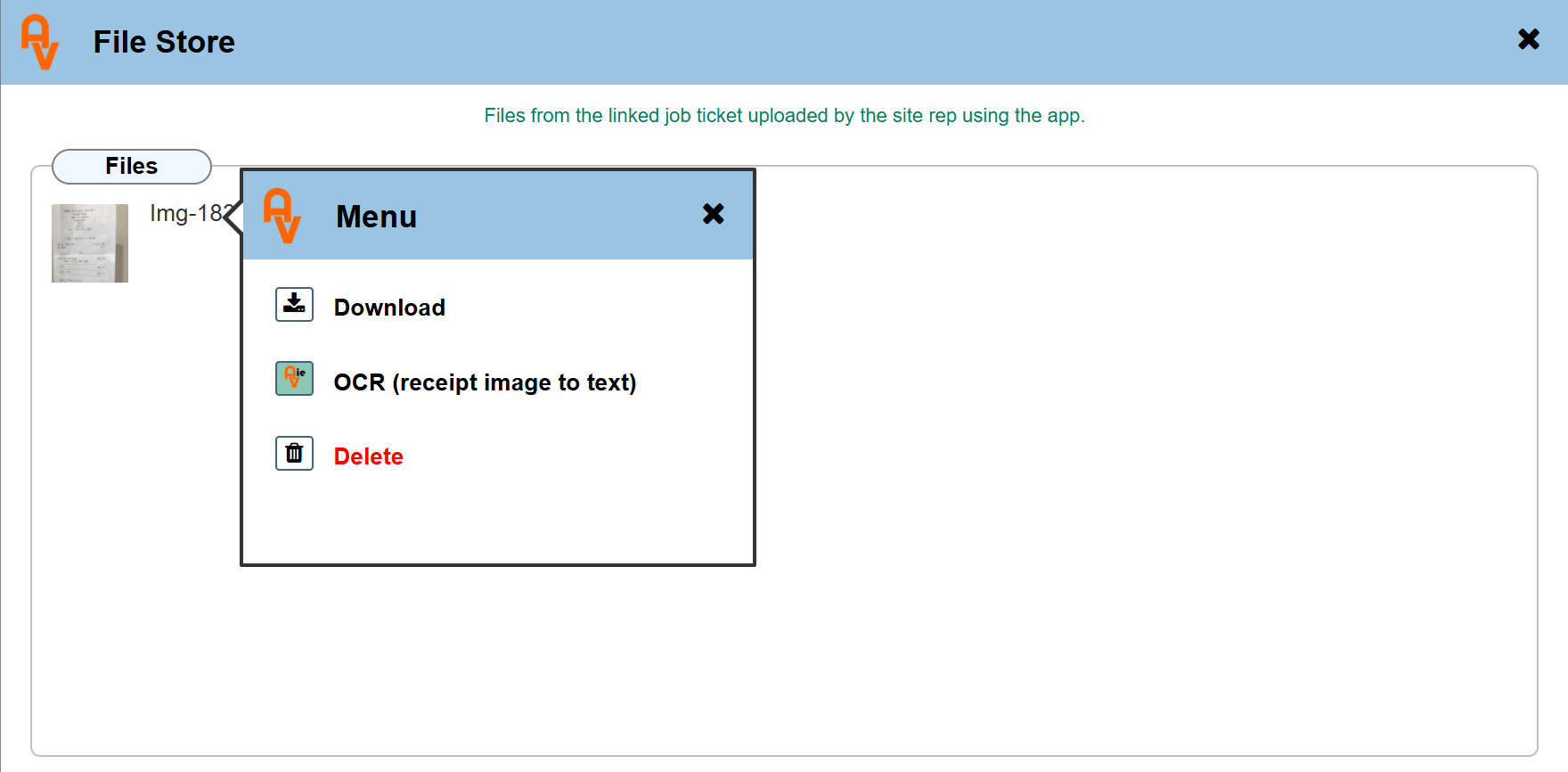
Upload: In the Purchase Order screen File Store, right click the uploaded document and select OCR.
-
Analyze: Avie will process the document. You will see a "Thinking" status while it extracts data and applies financial logic.
-
Review Draft: The system presents a structured draft.
-
Create: Click Create Purchase Order. The system generates the official PO and simultaneously updates the Supplier's master record with any new contact or banking data found on the document.