Smart View Overview
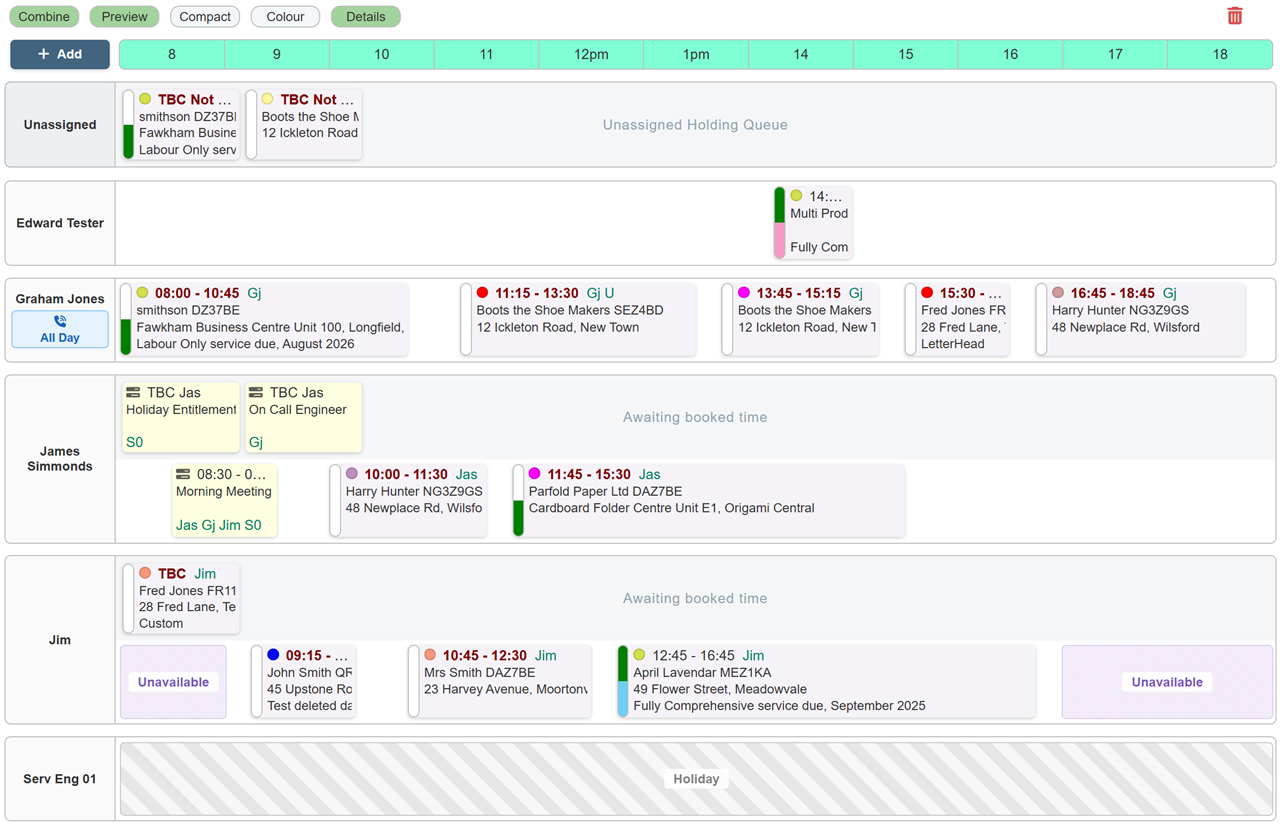
The Smart View provides a highly visual, chronological timeline of all Service Jobs, Tasks, and Appointments across your workforce. Designed for rapid dispatching, it allows coordinators to manage engineer schedules using intuitive drag-and-drop mechanics. The system intelligently stacks overlapping jobs into separate lanes and automatically highlights scheduling conflicts such as double bookings, holidays, or out-of-hours assignments.
Prerequisites & Permissions
To fully interact with the Smart View, users require specific system permissions:
- View Diaries: Access to view the Service (Engineer), Sales, or Appointments diaries.
- Edit Day: Required to move, reschedule, or alter durations via drag-and-drop.
- Add Jobs/Tasks: Required to use the 'Add' menu or Quick Book functions.
- Delete Access: Required to use the Trash Can zone or remove bookings from the timeline.
Navigating the Smart View Grid
The Smart View is divided into intelligent lanes to help you prioritise unscheduled work alongside booked itineraries:
- Unassigned Holding Queue: Located at the very top of the grid. This lane holds new jobs that have not yet been assigned to an engineer.
- TBC / Awaiting Time Queue: Each individual user has a grey holding area above their timeline. This contains jobs assigned to that specific person, but which have not yet been given a specific time (TBC).
- Scheduled Timeline: The main timeline grid. Jobs placed here lock into specific start and end times. If multiple jobs overlap, the system automatically expands the row and creates new lanes to prevent tiles from hiding behind one another.
- Blocking & Holiday Lanes: Approved holidays, absences, and unavailable working hours appear as striped blocks.
Service Job Status Indicators
Every Service Job tile features a dual-colour "pill" indicator on its left-hand edge. This allows dispatchers to instantly identify the progress of a job without opening the ticket. The pill is split into two halves:
- Top Half (Accept / Reject Status): Indicates if the engineer has acknowledged the job assignment via their mobile app.
- Bottom Half (Site Visit Job Stage): Tracks the live progression of the work being carried out on-site.
Top Half: Accept / Reject Status
|
|
White: The technician has not accepted or rejected the job. |
|
|
Green: The technician has accepted the job. |
|
|
Red: The technician has rejected the job. |
Bottom Half: Site Visit Job Stage
|
|
White: No action taken. |
|
|
Pink: Technician is travelling to site. |
|
|
Yellow: Technician is on-site. |
|
|
Lilac: No Show, unable to gain access to the property. |
|
|
Peach / Light Orange: An error occurred receiving the report. |
|
|
Light Blue: Site work complete and the product is working. |
|
|
Orange: Site work complete, the product is working, but a return visit is required. |
|
|
Maroon: Site work complete, the product is not working, but a return visit is not required. |
|
|
Red: Site work complete, the product is not working, and a return visit is required. |
|
|
Dark Green: Job marked complete by office personnel. |
Tile Colouring & Display Preferences
Coordinators can customise how colour coding is applied across job tiles using the Colour button located in the top preferences toolbar. This toggle controls whether job categories tint the entire tile or display as a discreet accent, allowing you to tailor the diary's visual density to your preference.
| Preference State |
Visual Appearance |
Best Used For |
Full Colour Mode
(Preference: ON / Highlighted) |
The entire background of the job tile is filled with the colour assigned to that specific Job Type (e.g., green for installations, amber for emergency callouts). The system automatically inverts text to white when dark background colours are used to maintain high contrast and legibility. |
High-volume dispatch environments where coordinators need to instantly spot job categories across many engineer lanes at a distance. |
Neutral Mode with Colour Dot
(Preference: OFF / Default) |
The tile background remains a soft, neutral tone (muted pastel grey/blue). To preserve job identification, a small circular Colour Dot is placed beside the scheduled time on the tile. Hovering your mouse over the dot displays the job type name. |
Reducing visual fatigue during extended screen use, providing a clean, minimalist layout while still retaining at-a-glance categorisation. |
System Note: Job Colours vs. Engineer Colours
Depending on your organisation's master system configuration, tile colours are assigned either by Job Type (e.g., Service, Maintenance, Warranty) or by Engineer Colour (where every engineer has a unique personal colour code). The Colour toolbar toggle controls the display style regardless of which colour-mapping rule your system administrator has configured.
On-Call Engineer Indicators
To assist dispatchers with emergency response and out-of-hours coverage, the Smart View automatically highlights engineers currently designated as "On-Call". Rather than cluttering the active timeline, the system flags on-call coverage directly inside the engineer's name card on the left-hand side of the grid.
John Smith
☎ 17:00 - 08:00
Visual Appearance:
A distinctive blue badge sits beneath the engineer's name, displaying a telephone icon alongside their assigned on-call operational window.
How On-Call Status is Triggered
- Dedicated Task Type: The badge activates automatically whenever an appointment is logged with the task category set to On Call (Task Type 8).
- Time Ranges: If a specific timeframe is entered on the task (e.g.,
17:00 to 08:00), the exact operational shift appears on the badge. If no specific hours are specified (or set to 00:00), the badge automatically displays All Day.
- Multi-Engineer Rota Coverage: If an out-of-hours duty covers a squad or pair of technicians, adding multiple engineers to the appointment's Share With list will automatically render the On-Call badge on all mapped profiles simultaneously.
- Compact Mode Adaptation: When the diary is toggled to Compact view, the badge smoothly shifts from below the name to sit inline alongside the engineer's name to conserve vertical screen space.
Dispatcher Pro-Tip:
Because On-Call duties are pinned directly to the engineer's name card, they do not occupy a track lane on the visual timeline. This keeps the schedule clear for daytime service visits while ensuring out-of-hours emergency technicians remain immediately identifiable at a glance.
Step-by-Step Instructions
1. Scheduling an Unassigned or TBC Job
- Locate the job tile in the top Unassigned Holding Queue or a user's TBC Queue.
- Click and hold the tile. The tile will become slightly transparent to indicate it is being moved.
- Drag the tile down onto a user's scheduled timeline. As you hover over the timeline, a tooltip will appear showing the exact snapped time.
- Release the mouse button to drop the tile. The system will automatically default the job to a 1-hour duration and snap it to the nearest 15-minute interval.
2. Adjusting Booked Times & Durations
- To change a Start Time, click and drag the job block horizontally along the timeline.
- To change the Duration, hover your cursor over the right-hand edge of the job block until an adjustment arrow appears. Click and drag the edge left or right. The duration will adjust in 15-minute increments.
3. Reallocating Bookings Between Users
- Click and hold a Service Job tile on the current user's timeline.
- Drag the tile up or down into the timeline lane of the new user.
- Release the mouse. The job will immediately reassign to the new user at the chosen time.
4. Removing or Deleting a Booking
- To remove a job's time without unassigning it from the user, drag the tile into the user's TBC Queue (or right-click the tile and select Set as TBC).
- To completely remove a job from the diary, drag it to the Trash Can icon at the top of the grid, or right-click and select Remove from Diary / Delete Task. Note: Removing a Service Job from the diary does not delete the underlying Job Ticket.
Using the Right-Click Context Menu
Right-clicking any empty space on a lane or directly on a job tile opens a smart Context Menu. This provides a fast alternative to drag-and-drop.
| Action |
Description |
| Open Job Ticket / Edit Task |
Opens the full details of the selected record in a new window or popup. |
| Set as TBC (Remove Time) |
Strips the scheduled time from the booking and returns it to the user's TBC queue. |
| Cut & Paste |
Allows you to "Cut" a tile, right-click elsewhere on the grid, and select Paste Here (to drop it at your cursor's exact time) or Paste at Original Time (to move it to a new user without altering the schedule). |
| Add New Task / Book Visit |
Right-clicking an empty space allows you to instantly generate a new booking at that specific date. |
View Preferences Toolbar
Located at the top of the grid, these toggles allow you to customise your display:
- Combine: Merges Service Jobs and Tasks into a single view, or separates them into distinct sections.
- Preview: When enabled, clicking a job tile opens a quick-preview panel instead of immediately navigating away to the full Job Ticket.
- Compact: Reduces the height of lanes and tiles to fit more engineers on a single screen.
- Colour: Toggles tile backgrounds between neutral grey and the assigned Job Type/Rep categorisation colours.
- Details: Swaps the secondary text on the job tiles between prioritising the full site address/postcode, or the Job Description/Notes.
System Rules & Validation Notices
Traceability Lock: Accepted & Rejected Jobs
To preserve accurate field traceability, once an engineer has Accepted or Rejected a job on their mobile app, the tile is locked. You cannot reallocate it to another user, drag it back to the TBC queue, or delete it from the diary. If an accepted job requires reassignment, you must create a fresh booking for the new user.
Task Ownership Restrictions
Unlike Service Jobs, Tasks (e.g., phone calls, admin reminders) belong strictly to the person who created them. The system will block any attempt to drag a Task onto a different user's timeline.
Clash Prevention: Warnings vs. Blocks
When dropping a tile, the system checks the engineer's working hours, holidays, and existing bookings. Depending on your company's configuration, a clash will result in either a Warning (a prompt notifying you of the clash, but allowing the booking to stay) or a Hard Block (the system will refuse the action and snap the tile back to its original location). Note: Jobs placed in the TBC queue are exempt from clash checks.