Rate Card Admin - Quote Labour Rates
Set My Company default Quote Labour Rates for AutoQuote, override rates per Managing Agent, or reset back to defaults.Details
Admin Setup – Quote Labour Rates Tab
The Quote Labour Rates tab inside My Company → Rates is where administrators configure the company’s default hourly labour rates for building AutoQuote proposals. The figures entered in My Company represent the standard rates the company charges generally and automatically pull through to all Managing Agents unless a specific Managing Agent rate has been set.
Key Takeaway – Defaults vs Custom Variations: My Company values are your company-wide defaults and automatically pull through to every Managing Agent in italicised /amber text unless edited. Overtyping a rate on a Managing Agent saves a custom variation (shown in black text), while clearing the box or entering 0 removes the override and reverts to the My Company default. Note that Quote Labour Rates are used exclusively in the AutoQuote Asset Builder and never affect live Job Ticket costings.
Real-Life Use Examples
How administrators use company defaults alongside Managing Agent variations:
- Scenario 1 – Setting General Company Quote Defaults: An administrator sets the standard My Company quote rate for Installation Engineer to £65.00 per hour and Commissioning to £75.00 per hour. Straight away, every Managing Agent record displays 65.00 and 75.00 in italicised /amber text so staff do not have to re-enter rates customer by customer.
- Scenario 2 – Giving a Large Managing Agent a Discounted Variation: A major property group negotiates a discounted Installation Engineer quote rate of £52.00 per hour due to high volume. The administrator opens that Managing Agent’s Rates → Quote Labour Rates tab, overtypes the italicised /amber 65.00 with 52.00, and it saves in black text. All other labour clauses on that Managing Agent stay italicised /amber and continue using the My Company defaults.
Step-by-Step Instructions
- Open My Company → Rates → Quote Labour Rates:
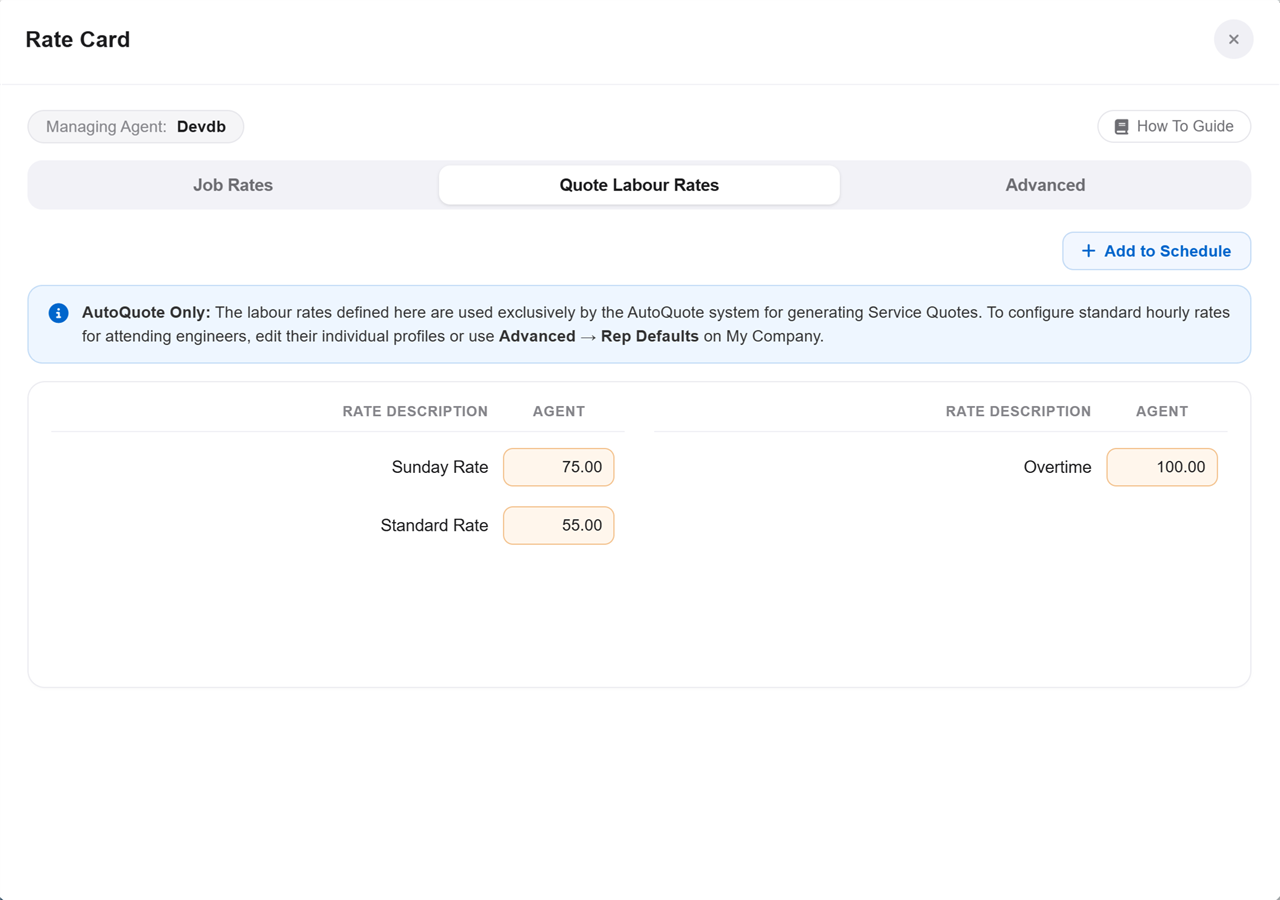
Screenshot 1: My Company Quote Labour Rates tab showing the default company schedule.
- Add New Quote Labour Clauses: If a quote labour category is missing, click + Add to Schedule. In the Add Pricing Clause popup, confirm Quote Labour Rates and click Add Clause.
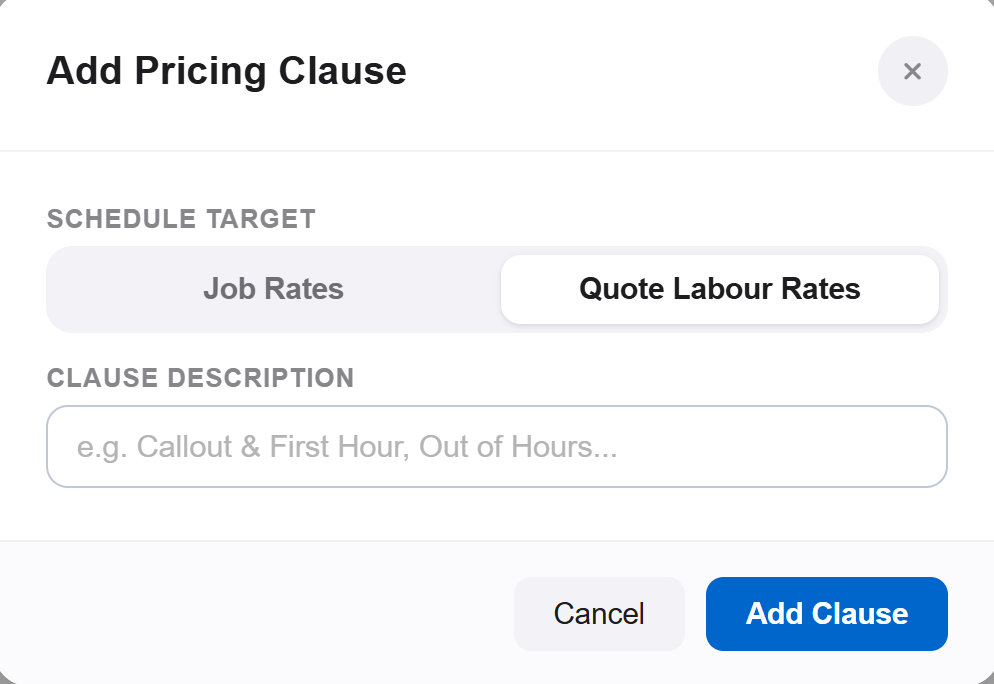
Screenshot 2: Creating a new Quote Labour clause in Add Pricing Clause.
- Enter Your Standard Company Default Hourly Rates: Click into each amber Agent field across the two-column schedule (a 0.00 cell clears automatically on click), enter the general hourly rate your business charges as standard, and press Enter or click outside the box to auto-save. These values immediately become the default prices that pull through to all Managing Agents.
- Set or Clear Variations for Specific Managing Agents (Optional): Whenever a Managing Agent has an agreed variation—such as a cheaper rate for a large key account—open that Managing Agent record, click Rates, and open the Quote Labour Rates tab:
- Spot Pulled-Through Defaults: Any figure displayed in italicised reddish/amber text has not been customised and is pulling straight from your My Company default.
- Apply a Managing Agent Variation: Overtype the pulled-through value with the Managing Agent’s agreed price and press Enter or click out of the box. The custom price saves immediately and displays in standard black text.
- Revert Back to the My Company Default: To remove a Managing Agent override and return to the standard My Company price, simply type 0 (or clear the box completely) and click away/press Enter. When the Rate Card refreshes or reopens, the My Company default will pull back through in italicised reddish/amber text.
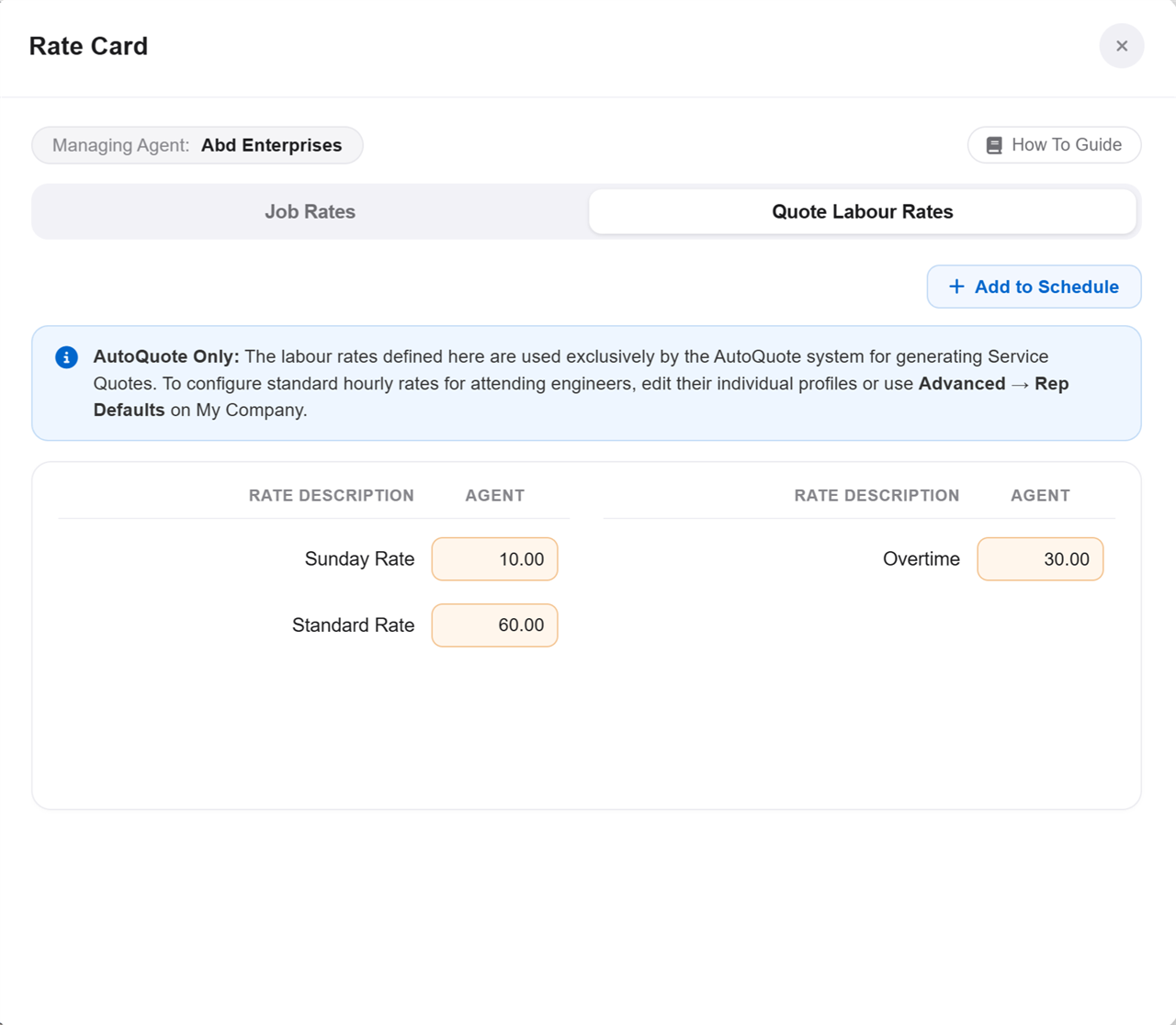
Screenshot 3: Managing Agent Quote Labour Rates showing italicised reddish/amber defaults vs black custom overrides.
- Understand How AutoQuote Consumes Defaults & Variations: Inside the AutoQuote Asset Builder under Costing → Rate:
- HQ: Pulls directly from the My Company default Quote Labour Rates.
- MA / Cust: Pulls the Managing Agent (Agent column) or Site (Site column) Quote Labour Rates—using the custom variation if set in black, or the pulled-through My Company default if left unedited.
- Rep / Custom: Rep reads from the user’s individual profile rate rather than this tab; Custom lets the estimator type a one-off hourly figure for that quote line.
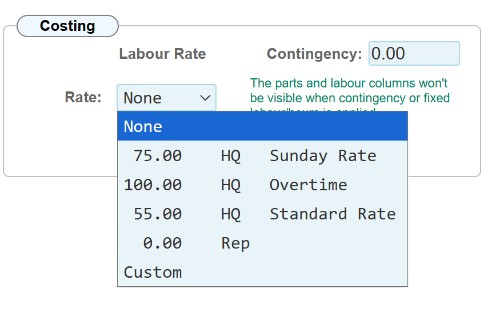
Screenshot 4: AutoQuote Asset Builder Costing → Rate dropdown showing HQ, MA, Cust, Rep, and Custom.
Variations & Conditional Rules
- Visual Colour States (Reddish/Amber Italic vs Black): On any Managing Agent or Site Rate Card, italicised reddish/amber numbers mean no Managing Agent override is saved and the My Company default is pulling through. Standard black numbers indicate a saved custom override on that record.
- Future Updates to My Company Defaults: Updating a default rate in My Company automatically updates every Managing Agent row that is still using the pulled-through italicised reddish/amber value, while leaving any custom black Managing Agent overrides untouched.
- Independent of Financial Sync: Unlike the costing columns on Job Rates, the Quote Labour Rates tab works identically whether Sync Job Financials is On or Off.
- Tab & Button Permissions: The Quote Labour Rates tab only appears to users with Quote Labour viewing permission, and + Add to Schedule only appears to users with permission to add clauses.
Field Rules & Validation Messages
| Field Name |
Requirement & Rules |
On-Screen Warning / Error Message |
| Clause Description |
Mandatory; maximum 60 characters; must be unique within Quote Labour Rates. |
“Please enter a description for the pricing clause.” / “A pricing clause with this name already exists.” |
| Agent Rate Input |
Optional currency figure up to 9 characters; auto-saves on blur or Enter. Entering 0 or clearing the box removes a Managing Agent override and reverts to the My Company default. |
None (auto-formats to 2 decimal places). |
| Permissions & Saving |
Requires Quote Labour view/edit and clause creation permissions. |
“You do not have permission to view the Rate Card.” / “You do not have permission to add clauses to the schedule.” / “Unable to save Rate Card changes.” |
Frequently Asked Questions
Why are some prices on a Managing Agent’s Quote Labour Rates italicised and reddish/amber while others are black?
An italicised reddish/amber price means it has been pulled through automatically from your My Company default rate. A black price means someone has overtyped it with a specific custom rate for that Managing Agent (such as a discounted contract rate).
How do I remove a custom Managing Agent price and go back to the standard My Company price?
Click into the box, clear the value or type 0, and press Enter or click out of the box. Removing the custom figure restores the pulled-through My Company default rate (displayed again in italicised reddish/amber text).
I updated the hourly rate on Quote Labour Rates, so why didn’t my live Job Ticket labour change?
Quote Labour Rates only feeds the AutoQuote Asset Builder. Live Job Ticket labour is calculated from each engineer’s profile (My Company → Users) or Advanced → Rep Defaults, unless a Job Rates row specifies a non-zero Rate override.
In AutoQuote Asset Builder, why does selecting Rep give a different rate than HQ?
HQ reads from your My Company default Quote Labour Rates, whereas Rep reads from the user’s individual labour rate configured on their profile.
See Also:
Rate Card Admin - Quote Labour Rates
Check out the other 'How To' guides to find out more about Workforce Manager.
If you would like to know more about AutoVu and what we can do to help your business, why not check out our Frequently Asked Questions page, or Contact Us any time to discuss your specific requirements.
Professional cloud based software